When I try to install
Free Access, I get an error that includes "ddraw.dll."
In order to successfully install AltaVista Free Access,
you will need to download DirectX.
When I try to dial in, it
is unable to verify my username and password and a window
appears on my screen asking me to re-enter my username
and password.

When this window appears, you can try the following
solution:
Click "Cancel." Click on the AltaVista desktop
icon. Re-enter your password. Click "Connect."
If this is not successful, you may want to try dialing
into another
dialup number in your calling area.
If these solutions are not helpful, you may want to
re-register and obtain
a new username and password for AltaVista Free Access.
When I try to dial in,
Free Access doesn't recognize that I have a modem
installed and "Connect" cannot be selected. How can I
connect to Free Access?
Click on the "Start" button, highlight "Settings."
Click "Control Panel." Choose "Add/Remove Programs."
Click the "Windows Setup" tab. In the "Components"
window, click "Communications." Check the box next to
"Dialup networking." Select "OK." You may need to insert
your Windows CD-ROM. Restart your computer.
When I try to dial in, I
receive an error which reads "FreeAV.exe is linked to
missing export: RASAPI32.dll:RasSetEntryProperties
A."
To solve this problem, we suggest that you download
the latest version of Dial-Up Networking.
When I try to dial in, I
receive an error that reads ""Dial-up Networking
Error. The port was disconnceted by the remote computer."
This error is probably due to heavy traffic on the
phone number which you are trying to dial. Try adding
a few phone numbers to your dialing location. Click
"Try Next Number" when it begins dialing to
use the next number on the list.
If this does not solve your problem, we suggest that
you download the latest version of Dial-Up Networking.
My software has problems
during authentication and/or initialization. What should
I do?
Sometimes authentication/initialization is not possible
due to heavy traffic on our system.
If you experience authentication/initialization difficulties
,there are a number of solutions you can try:
1) Logging out and rebooting your computer
2) If you still experience problems, try adding
a few phone numbers to your dialing location. Click
"Try Next Number" when it begins dialing to
use the next number on the list.
3) If problems persist during authentication, try downloading
the latest version of Dial-Up
Networking. If the problems persist during initialization,
try downloading the latest version of Internet
Explorer.
When I try to dial into
the system, I get an error message that reads "No PPP
protocols configured."
- Click "Start". Highlight "Settings". Select
"Control Panel." Double click "Network." Click
"Add."

- Double-click "Adapter."

- Highlight "Microsoft" in left window. Double Click
"Dial Up Adapter" in right window.

- Double click "Protocol."
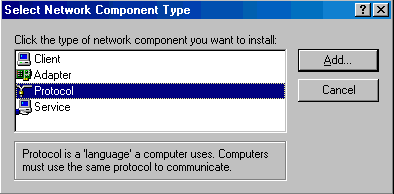
- Highlight "Microsoft" in the left window. Double
click "TCP / IP" in the right window.

- Click "OK." Insert Microsoft Windows systems disks
if necessary. Restart your computer.
When I try to dial in, I
get an error message that reads "Port was disconnected
due to hardware failure."
This error means that Microsoft Windows and your
modem are no longer communicating properly. Rebooting
(turning your machine off and on again) may fix the
problem. It is also helpful to close programs you aren't
using. If those solutions don't work, you could try
installing and un-installing your modem as follows:
NOTE: Please be aware that the
following instructions may cause problems if you need to
use your modem for applications other than AltaVista
Free Access. If you don't wish to try the procedure below
(or it doesn't work for you) it may be helpful to
download the latest version of Microsoft Dial-Up Networking.
Click on the "Start" button, highlight "Settings."
Click "Control Panel." Double-click on "Modems." The
"Modems Properties" window will open. Click the
"Diagnostics" tab. Write down the "COM" number your
modem is installed on. Click the "General" tab. Write
down the brand and model name of your modem. Click once
on your modem. Click the "Remove" button. The modem
listing will disappear from the window.
Click the "Add" button. A window reading "Windows
will now try to detect your modem" will appear. Click
"Next." If Windows does not detect your modem
automatically, you will have to choose the brand and
model from a list. Choose the "COM" number you wrote
down earlier. Click "Next." Click "Finish." You may need
to restart your computer.
When I try to dial in, I get
an error message that reads "No answer." What should
I do?
Click on the "Start" button. Highlight "Settings."
Highlight "Control Panel." Double-click on "Modems."
Click "Properties." Pull down the menu under "Maximum
Speed" and confirm that the highest possible modem speed
is selected.
When I try to dial in, I get an
error that reads "Can not read media.ini file." What
should I do?
You will have to remove and re-install Dial-Up
Networking. Click the "Start" button. Highlight
"Settings." Click "Control Panel." Double-click
"Add/Remove" Programs. Click the "Windows Setup" tab. In
the "Components:" window, click "Communications" and
then click "Details." Un-check the "Dial-Up Networking"
box. Click OK until you return to your desktop. Restart
the computer.
After the computer has re-booted, click the "Start"
button. Highlight "Settings." Click "Control Panel."
Double-click "Add/Remove" Programs. Click the "Windows
Setup" tab. In the "Components:" window, click
"Communications" and then click "Details." Check the
"Dial-Up Networking" box. Click OK until you return to
your desktop. Restart your computer.
When I try to dial in, I get
an error that reads "missing OLEPRO32.DLL." What should
I do?
This error means that you should download the latest
version of Microsoft
Internet Explorer.
When I open Dial-Up Networking,
I see a message that reads "AltaVista--Do Not Use."
Why does my dialer dial 555-1212 when I click this?
In order to use AltaVista Free Access you need to use
the dialer that comes with the software. In order to use
the Free Access dialer, double-click on the Free Access
icon located on your desktop.
When I try to dial in, I receive
an error that reads"navigation cancelled." What should
I do?
You will need to disable your proxy server, using the
instructions in the following question.
I receive an "invalid page
fault" or a "runtime" error. How can
I fix this?
This problem is usually solved by closing all applications
except Internet Explorer and Systray. To do this, press
CTRL-ALT-DELETE at the same time. A "Close Program"
window will appear. Highlight each open program (except
Internet Explorer and systray). Press the "End Task"
button to close your open programs. Once this process
is complete, double click on your AltaVista icon to
access the Internet.
If this process doesn't work for you, reboot your computer,
and double click on the AltaVista icon before opening
any other programs.
I receive an error asking me to
disable my proxy server. How do I do this?
If you have Internet Explorer 4.0, you may need to
change your proxy server settings. Click on the "Start
button." Select "Settings." Select "Control Panel."
Double-click on "Internet." Click on the "Connections"
tab. Uncheck the boxes under the "Proxy Server" heading.
Click "Configure." Erase any information in the "URL:"
window. Click "OK." Click "OK" again. Restart your
computer.
If you're using Internet Explorer 5.0, you may need
to change your proxy server settings. Click on the
"Start button." Select "Settings." Select "Control
Panel." Double-click on "Internet." Click on the
"Connections" tab. Double-click on "AltaVista--Do Not
Use" Uncheck the box labeled "Use a Proxy Server." Click
"OK." Click "LAN Settings..." Uncheck the box labeled
"Use a Proxy Server." Click "OK." Restart your computer.
When I try to dial in, I receive
an error that reads "The session management module is
invalid." What should I Do?
This problem was most likely caused by the
installation of another program that changed Windows'
default settings. Use the following steps to correct
this problem. However, please be aware that doing so may
prevent you from using the application that made the
changes.
Click on "Start" and highlight "Run." Type "regedit"
in the Run window and click OK. Double-click
"HKEY_LOCAL_MACHINE." Double-click"System." Double-click
"CurrentControlSet." Double-click "Services."
Double-click "RemoteAccess." Double-click
"Authentication." Double-click "SMM_Files." Click "PPP."
On the right side of the screen, under Name, look for
"Path". The Data should read "rasapi32.dll". If it
doesn't, double-click "Path" and type "rasapi32.dll" for
its value. Now click on registry in the upper left
corner of the window and select "Exit."
When I try to dial in, I receive
an error that contains "missing KERNEL 32.DLL." What
should I do?
If you have Microsoft Windows 95, you may need to get
an update to Winsock. Click here
to download the update, paying close attention to the
instructions and warnings.
What if my system freezes up?
If your system freezes, press Ctrl, Alt and Delete
simultaneously. In the "Close Program" window, select
"Free Access" and click "End Task". You will now have
to log in again to AltaVista Free Access.
What if I have trouble using AltaVista
Free Access once I install AOL 5.0?
When you install AOL 5.0, it will ask "Would you like
this copy of the AOL software to be your default Internet
application for Web pages, newsgroups, and email?" If
you answer "Yes" in response to this question or press
the enter key, you may not be able to use AltaVista
Free Access.
If you have already made AOL 5.0 your default internet
application but wish to change your selection, please
do the following:
Open Internet Explorer. Click on the "Tools" menu. Select
"Internet Options." Click on the "Programs" tab. Check
the box next to "Internet Explorer should check to see
whether it is the default browser." Click "Apply." Click
"Ok." Restart your computer. Start Internet Explorer.
You will be prompted "Internet Explorer 5 is not currently
your default browser - would you like to make it your
default browser?" Select "Yes."
What if I hear a clicking
sound each time the advertising banner changes?
This is the normal sound your system makes when you
navigate using Internet Explorer. To remove this sound,
please do the following: Click on "Start." Highlight
"Settings." Select "Control Panel." Double click "Sounds."
Scroll down to "Windows Explorer." Highlight "Start
Navigation." Click "Delete."
Why does my browser keep
returning to the AltaVista registration website?
You are logging using the "Create A New Account"
feature. This feature allows new users without a username
or password to log in using a guest account and register
for AltaVista Free Access. You are restricted to the
AltaVista registration site when logged in using this
guest account. To disable this feature, click on the
window next to "User name" and enter the username
and password you received when you registered for Free
Access.

| 


 FREE ACCESS
